Bookmark attendees you want to meet. Each booking window closes at 3:00 PM Singapore time.
First booking window
5 – 9 Oct
Bookmark people to meet.
Match results12 Oct
Second booking window
9 – 23 Oct
Bookmark again. New pass holders join here.
Match results26 Oct
Final booking window
26 Oct – 6 Nov
Keep bookmarking while you review.
Match results9 Nov
Meet at SFF
18 – 20 Nov
Meet in Hall 4B and Hall 5A.
We email you before each booking window opens, and again when your meetings are ready to review.
How SFF MeetUp Works
Three booking windows: bookmark, get matched, review, then meet. Up to 20 meetings, timed around the keynotes.
1. Bookmark who you want to meet
When a booking window opens, bookmark as many people as you like. Top Picks shows who fits your focus.
2. Get matched
A meeting is booked only where you’ve both bookmarked each other, in a time you both kept free.
3. Review
You get a few days to look over your meetings and cancel any that don’t fit. Your schedule shows each time and table.
4. Meet
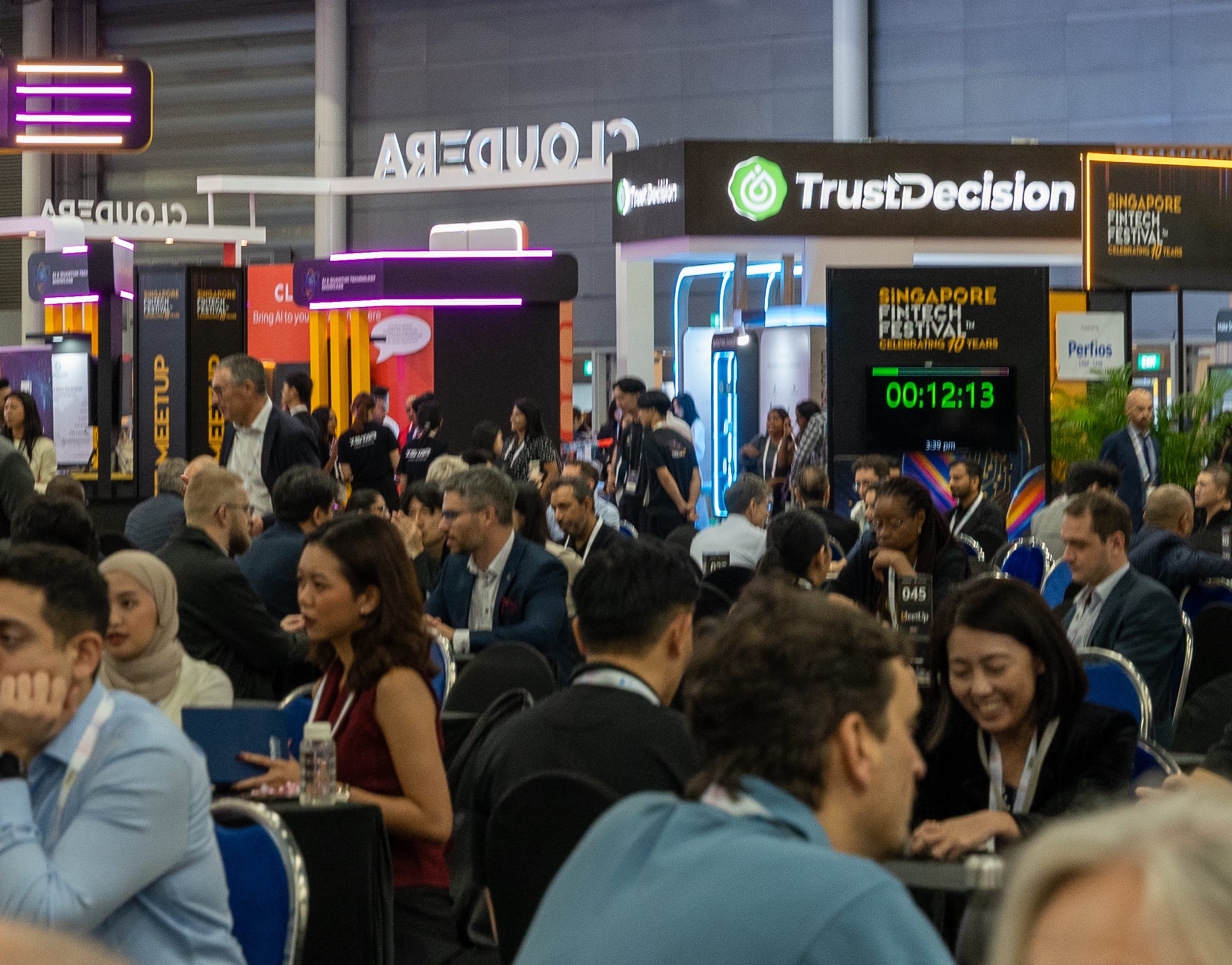
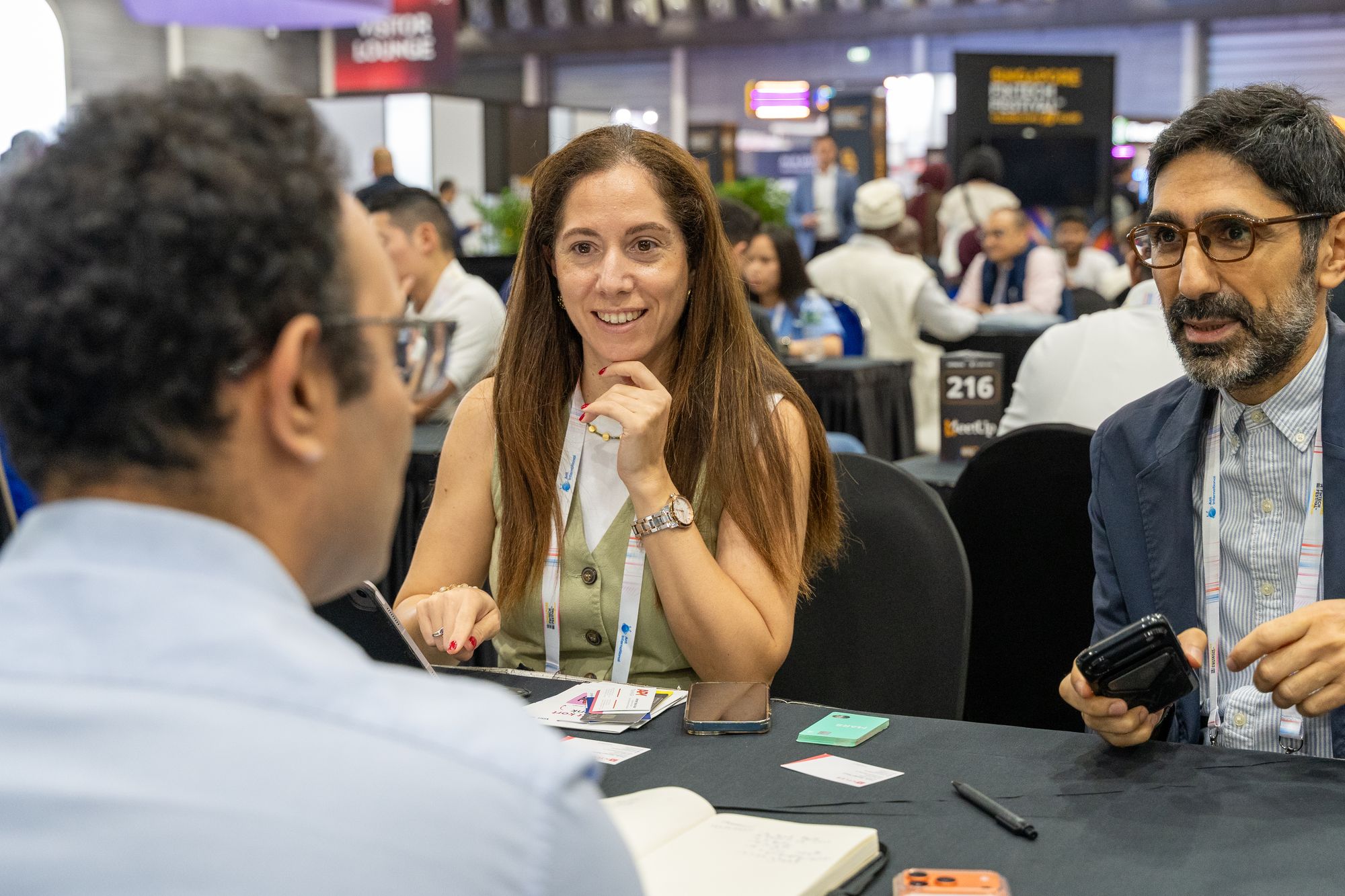
15 minutes at a table in the Hall 4B or Hall 5A lounge, with 5 minutes to get to the next one. Meetings run from 12:30 to 5:05 PM on 18 and 19 Nov, and from 12:30 to 4:25 PM on 20 Nov. The app reminds you before each one.
How Matching Works
It’s double opt-in: a meeting is booked only when you’ve bookmarked each other.
Cross out any times you can’t meet. Meetings only go into slots you’ve both kept free.
Bookmark as many people as you like. On the platform, that’s the star on each profile.
When the window closes, an algorithm books your mutual bookmarks in order of best fit.
Cancel any meeting that doesn’t suit you. You won’t be matched with that person again.
Each booking window brings in new people, so come back and bookmark again.
How to Use SFF MeetUp
Eight steps. Do the first three as soon as your invite arrives.
1
Step 1: Log In
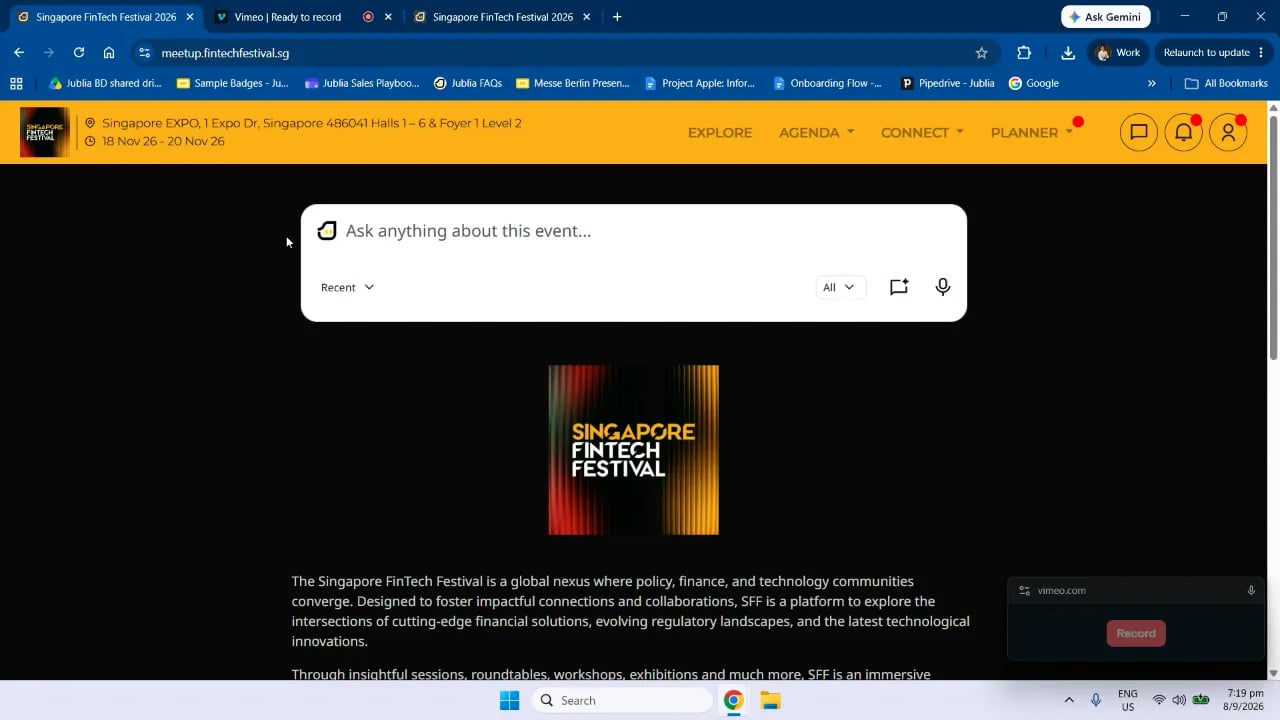
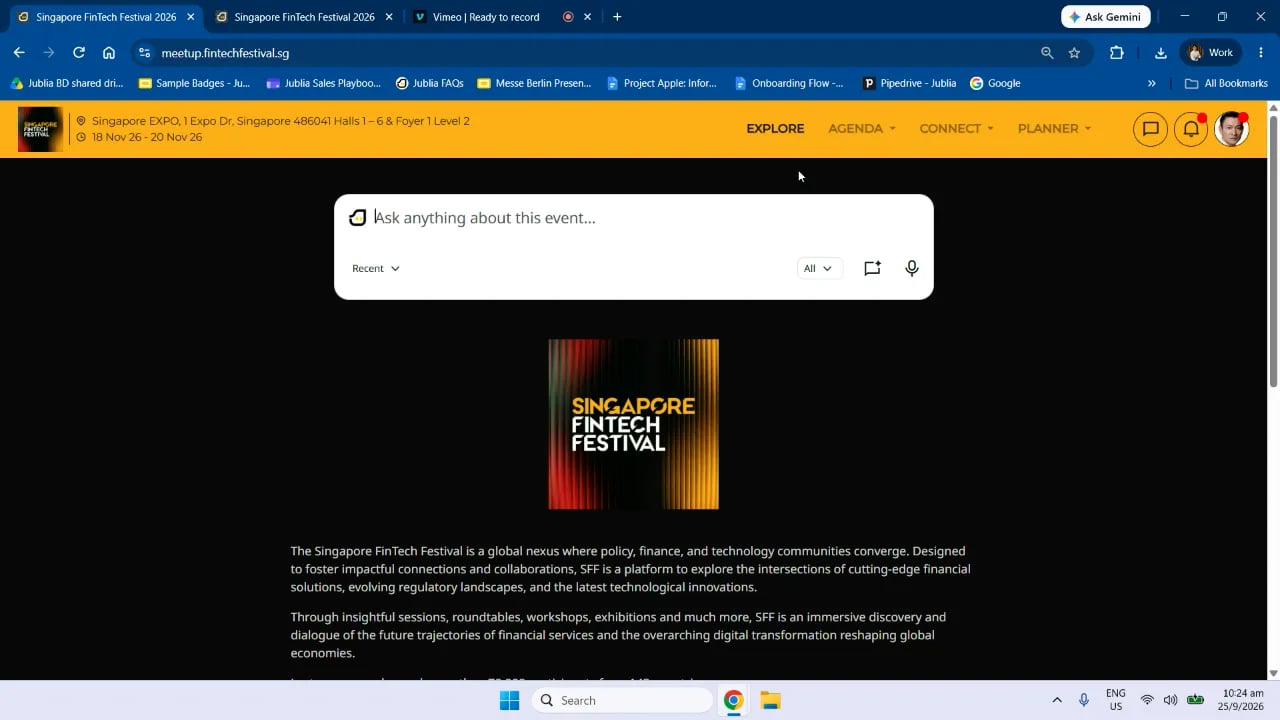
Once you have a pass, we email you an invite. Click Get to Your Account in that email.
Complete the two-step verification and you’re in, on desktop or on your phone.
No email? Check your junk folder. If it isn’t there, your email server may be blocking it. Write to meetup@sgfintechfest.co and we’ll send you a direct login link.
from 0:44Video guide How to set up your time availability
3
Step 3: Complete Your Profile
Click the face icon in the top-right corner, then My Profile.
Click Upload Image to add your photo (square, up to 1 MB).
Click Describe Yourself and say who you are, what your company does and who you’d like to meet (up to 3,000 characters). Click Save.
Your country, job function and interests come from your registration. To change them, update the registration portal and the platform picks it up automatically.
Tip: Other attendees see your photo and description when they decide who to bookmark.
Exhibitors: add products under My Products. Make other company profile changes, apart from PDF uploads, in the Online Exhibitor Manual (OEM).
Booking windows 5–9 Oct, 9–23 Oct and 26 Oct–6 Nov
Bookmark as many people as you like while a booking window is open. The more you bookmark, the more likely you are to be matched. You can’t send meeting requests yet.
Top Picks
Connect›Top Picks Suggestions for you, each with a reason:
Fits your focus
They fit your interests.
Seeking your profile
They’re interested in your profile.
Popular with peers
People like you are interested in them.
Mutual match
You share interests.
Search
Connect›People, Companies or Products then narrow it down with the filters.
Review bookmark requests
To review the list of users who have bookmarked you, go to Connect›Bookmarked You.
Click the star on a profile to bookmark that person. Your list is under Planner›Bookmark.
Bookmark people, not companies. Matching only runs on people’s profiles. Starring a company or product saves it for you to look at later, but it won’t book a meeting.
from 0:33Video guide How to search and bookmark profiles
5
Step 5: Review Your Meetings
12–15 Oct and 26 Oct–6 Nov
We email you when your meetings are booked.
Go to Planner›My Schedule.
Click Cancel on any meeting that doesn’t suit you.
Good to know: you won’t be matched again with anyone whose meeting you cancel.
You can have up to 20 meetings. Each one is 15 minutes, with 5 minutes in between to get to your next table.
Every afternoonMeetings run from 12:30 to 5:05 PM on 18 and 19 Nov and from 12:30 to 4:25 PM on 20 Nov. The Festival Stage programme is in the mornings, from 9:00 AM, so you can catch the keynotes before your first meeting.
Hall 4B and Hall 5AThe two MeetUp lounges. Planner›My Schedule shows the lounge, table and time for each one.
5 minutes earlyGet to the lounge 5 minutes before each meeting.
Tip: The last Festival Stage session can run until about 1:00 PM. To stay for it, cross out the 12:30 and 12:50 slots in Planner›Time Availability. Do the same for any other session you want to see.
8
Step 8: Rate Your Meetings
After each meeting, rate it and add comments under Planner›My Schedule. Your feedback helps us improve SFF MeetUp.
Frequently Asked Questions
What is SFF MeetUp?
SFF MeetUp is the Singapore FinTech Festival’s meetings programme. You bookmark the people you want to meet, and we book a 15-minute meeting wherever you’ve both bookmarked each other. You can get up to 20 meetings, held in dedicated lounges at the Festival.
Which passes include SFF MeetUp?
SFF MeetUp is included with the Delegate, Startup and Executive passes. You can also buy the MeetUp Pass (SGD 380) on its own, which includes the exhibition.
How do I get into the MeetUp platform?
Once you have a pass, we’ll email you a platform invite. Click Get to Your Account, complete the two-step verification, and you’ll be logged in. The platform works on desktop and on your phone.
I haven’t received my invite email. What should I do?
Check your junk or spam folder first. If it isn’t there, your company’s email server may be blocking it. Write to meetup@sgfintechfest.co and we’ll send you a direct login link.
Is there a mobile app?
Yes, on iOS and Android. We strongly recommend downloading it so you get reminders before each meeting.
How do I set up my profile?
Click the face icon in the top-right corner of the platform. Your profile is pre-filled with the details you gave when you registered. Complete it as soon as you’re in, so other attendees can find you and see why they should meet you.
How do I change my job title, interests or other profile details?
Update them in the registration portal. Changes there sync to the MeetUp platform automatically.
I’m an exhibitor. How do I update my company profile?
You can add products under My Products in the platform. For other company profile changes, except uploading PDF files, use the Online Exhibitor Manual (OEM).
How do I tell the platform when I’m available?
Go to Planner > Time Availability, cross out any slots when you don’t want meetings, then click Confirm. Keep as many slots open as you can: meetings can only be booked in times you’ve both kept free.
How are meetings booked?
SFF MeetUp uses a double opt-in system:
During a booking window, you bookmark as many people as you like.
When the window closes, our algorithm books meetings with people who bookmarked you too, ranked by best fit, in times you both kept free.
You review your meetings and cancel any that don’t suit you.
What are the booking windows?
Booking windows are where you can bookmark attendees you are interested in meeting at SFF.
First booking window: bookmark 5–9 Oct, 3:00 PM SGT. Match results 12 Oct.
Second booking window: bookmark 9–23 Oct, 3:00 PM SGT. Match results 26 Oct.
Final booking window: bookmark 26 Oct–6 Nov, 3:00 PM SGT. Match results 9 Nov.
After each booking window closes, an email will be sent to you when your matches are ready for review.
I bought my pass late. Can I still take part?
Yes. New pass holders join the next open booking window. People who join early have more chances to be matched, though, so the sooner the better.
How do I find the right people to meet?
There are two ways:
Top Picks (Connect > Top Picks): AI-powered suggestions, labelled Fits your focus, Seeking your profile, Popular with peers or Mutual match.
Review your bookmark requests: go to Connect > Bookmarked you
Search (Connect > People, Companies or Products): use the filters to narrow down your ideal prospects.
Click the star icon on a profile to bookmark that person.
Is there a limit to how many people I can bookmark?
No. Bookmark as many people as you like. The more you bookmark, the more likely you are to be matched.
Can I bookmark a company or a product?
You can, for your own reference, but it won’t lead to a meeting. Matching only runs on people’s profiles, so bookmark the individuals you want to meet.
Where can I see who I’ve bookmarked?
Go to Planner > Bookmark.
Where can I see who has bookmarked me?
To review the list of users who have bookmarked you, go to Connect > Bookmarked You.
Can I send someone a meeting request directly?
Not during the booking windows. Meetings are booked only when both sides bookmark each other. Once the booking windows close, you can send meeting requests to anyone (see below).
Where do I see my meetings?
Go to Planner > My Schedule. It shows the time and table for each meeting.
Can I cancel a meeting?
Yes. In Planner > My Schedule, click Cancel on any meeting that doesn’t fit. You’ll have a few days after each round of results to review.
If I cancel a meeting, could I be matched with that person again?
No. You won’t be matched again with someone whose meeting you cancelled.
What happens after the booking windows close?
From 9 Nov, the platform opens for direct requests. You can send a meeting request to anyone on the platform, and the meeting goes ahead once they accept.
Where do meetings take place?
In the two MeetUp lounges, at Hall 4B and Hall 5A. Your schedule shows which lounge and table each meeting is at.
How long is each meeting?
15 minutes, with 5 minutes between meetings to get to your next table.
When should I arrive?
Please arrive at the lounge 5 minutes before your meeting so it can start on time.
How do I rate my meetings?
After each meeting, rate it and add comments under Planner > My Schedule. Your feedback helps us improve SFF MeetUp.

.svg)



 4:07
4:07